Right from the browser
Save in your chosen format without downloading the WebP first or uploading it to a converter.
WEBP TO JPG, WITH A RIGHT-CLICK
Need a JPG instead of a WebP? PixTuck saves web images in the format your presentation, catalog or everyday tools need—right from your browser.
Explore PixTuck — start free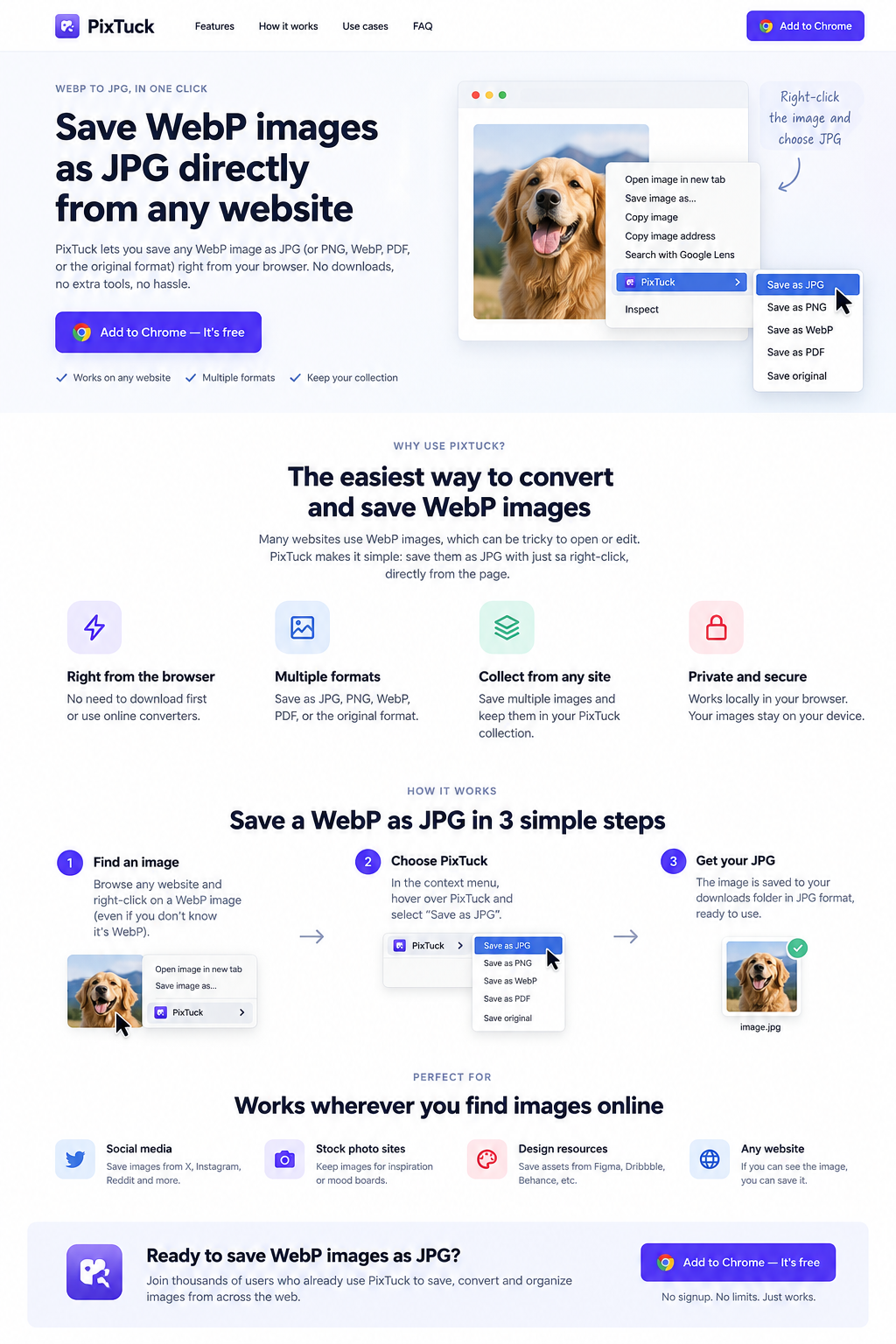

WHY USE PIXTUCK?
Many websites deliver photographs as WebP. When your next step calls for JPG, save the image in that format directly from the page.
Save in your chosen format without downloading the WebP first or uploading it to a converter.
Choose JPG, PNG, WebP, PDF or the original format from the same image workflow.
Bring selected images from different websites into one PixTuck project.
Image conversion and editing happen on your device. No image uploads for processing.
HOW IT WORKS
First, get PixTuck from the product page. Then you’re ready to save.
Browse to a web image you want to use and right-click it.
Open the PixTuck menu and select “Save as JPG”.
PixTuckChrome downloads the converted image, ready for your next project.
READY FOR YOUR NEXT STEP
Prepare web photographs for slides and reports.
Save product photographs in a familiar format.
Collect visual inspiration for your next project.
Get JPG files for tools and forms that request them.
A FEW USEFUL ANSWERS
Install PixTuck from its product page, then right-click the web image, open the PixTuck menu and choose Save as JPG. Chrome saves the converted file using your download settings.
Yes. JPG and JPEG refer to the same image format. JPG is useful for photographs and is widely supported. It does not support transparency.
Yes. Direct saves are included in PixTuck Free. Studio projects can contain up to three images in Free; Pro adds larger projects and advanced output controls.
No. Conversion and editing happen locally on your device. Pro purchases and license validation use Freemius; image processing does not.
Need PNG instead? See WebP to PNG
Meet PixTuck, compare Free and Pro, and install it in Chrome.